You can insert components into a web report via the Insert menu or via the Components panel on the left of the JReport Studio window.
The following table lists the report areas that are valid targets for the various components.
|
Report Layout Area
|
|||||||||||
|---|---|---|---|---|---|---|---|---|---|---|---|
| Component | Page Header/Footer | Report Body | Tabular Cell | Table Cell | |||||||
| Chart | Y | Y | Y | N | |||||||
| Crosstab | Y | Y | Y | N | |||||||
| Table | Y | Y | Y | N | |||||||
| Group object | Y | Y | Y | Y | |||||||
| Detail object | Y | Y | Y | Y | |||||||
| Aggregation object | N | Y | N | Y | |||||||
| Formula | Y | Y | Y | Y | |||||||
| Label | Y | Y | Y | Y | |||||||
| Image | Y | Y | Y | N | |||||||
| Multimedia object | Y | Y | Y | N | |||||||
| Web control | Y | Y | Y | N | |||||||
The following shows inserting a specific component in detail:
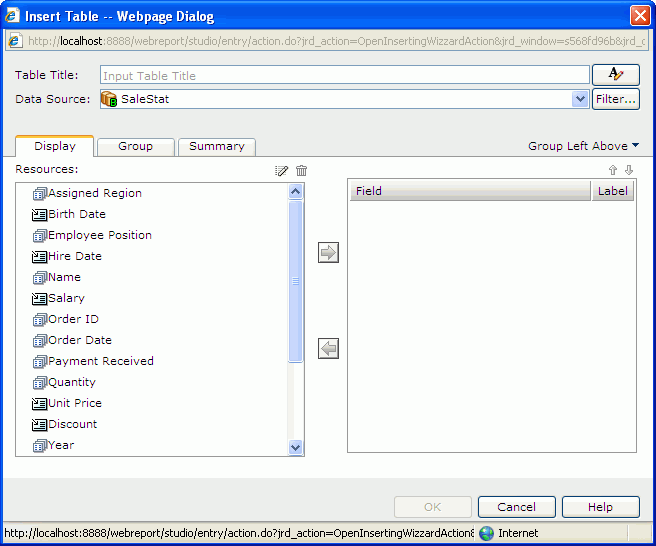
To insert a table into a web report:
 to set the font properties for the title.
 as the grouping criteria, then specify the sorting manner of each group in the Sort column. To adjust the order of the groups, select a group and click
  or
or  .
. as the summary field. For the Group Left table, you can use the Row and Column columns to control the position of the summary field in the table.
See also Insert Table dialog for additional information about options in the dialog.
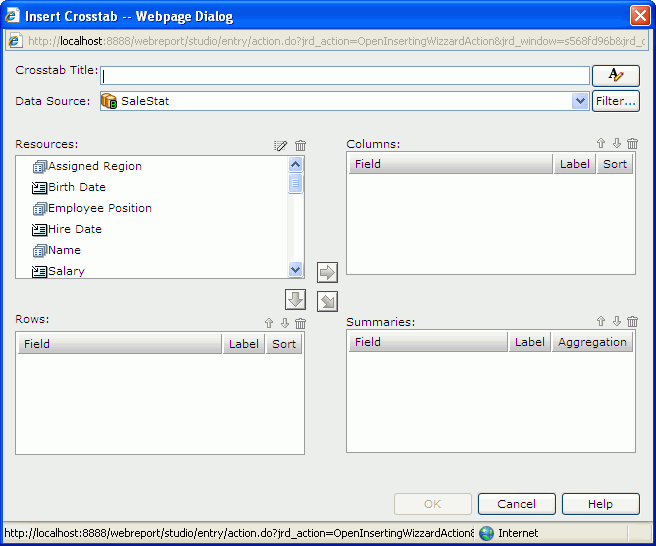
To insert a crosstab into a web report:
to set the font properties for the title. and click  or
or  to add it to the Columns or Rows box as a group field. Then, in the Label column, edit the display name of the group object if required. This will label the row/column when the report is displayed. By default the Label column is blank and no label will be created for the row/column. In the Sort column, specify the sorting manner for the group field. or a numeric detail object
  and click
  to add it to the Summaries box as an aggregate field. If a detail object is added, specify the aggregate function for it in the Aggregation column. In the Label column, edit the display name of the aggregate field as required.
 . To adjust the order of the fields, select a field and click or .
See also Insert Crosstab dialog for additional information about options in the dialog.
Normally, a chart displays values in a static way and you cannot change the values on it once it is created. However, JReport provides you with options to make the chart interactive and dynamic. For example, if your data source uses data that changes quickly over time such as stock market values, you can create a real time chart, so that the chart will update itself based on a defined interval by using the real time data from the data source. You can make a chart move at runtime based on the value changes of a motion field by creating a motion chart. In a motion chart, the chart is playable. You can start or stop the chart to play the dynamic trend of the motion field, control the moving speed of the chart, and if you create a bubble motion chart, you can even use a trail control to make the chart move showing a bubble or line trail.
In JReport Studio, when you create a chart, you can choose to make it a normal chart, a real time chart or a motion chart.
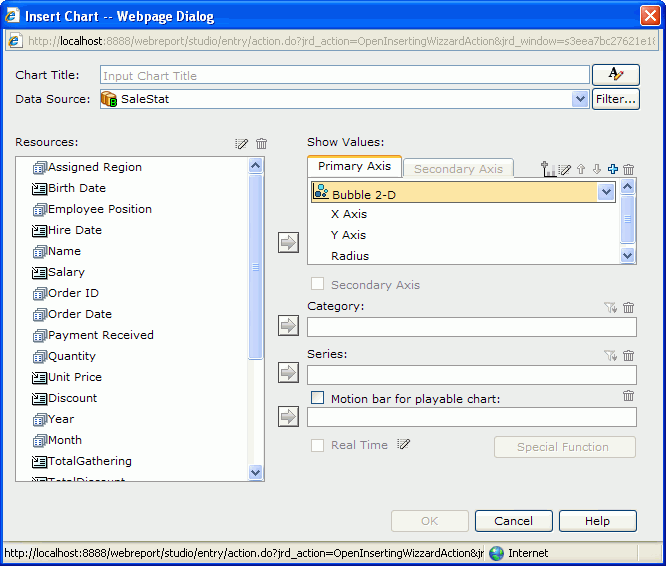
to set the font properties for the title.To create a combo chart, click  above the Primary Axis box and an additional chart type will be added. You can replace the additional chart type by selecting the required one from the chart type drop-down list. Repeat this to add more chart types. Check the Secondary Axis checkbox if you want to have the secondary axis (Y2) and define the chart types on the axis as required. To delete a type, select it and click .
or an additional value  as the data of the type. You can add more than one data field to a chart type. Each added chart type shall have at least one data field.
If you select a bubble chart type, you need to specify the fields to be shown on the bubble X axis, Y axis and the value you want to show as the bubble adius in the Show Values box. Note that when you specify a value for the bubble X axis, this value will be displayed on the category axis instead of the one specified in the Category box. However, the value defined in the Category box will also be included in data calculation.
To add an additional value to a chart type:
beside the Show Values box. The Edit Additional Value dialog appears.To modify a constant/average value, select the value in the Show Values box, then click  . In the Edit Additional Value dialog, edit the value as required.
in the Resources box and add it to the Category or Series box, the data of which will be displayed on the corresponding axis. above the Category or Series box, then define the order and condition in the Category/Series Options dialog.
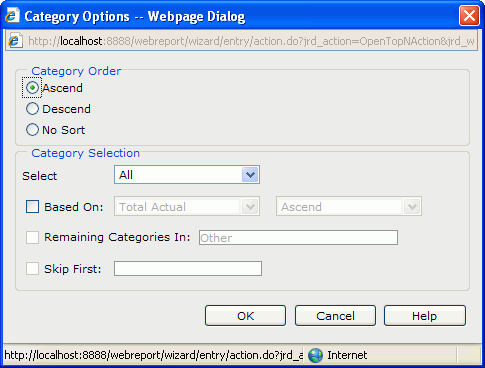
To define a sort order and Select N condition on the category/series field:
If Based On is unchecked, the order of the first or last N category/series values will be based on what you specify in the Category/Series Order box of the dialog; if you check it, the order will be based on values of the summary field and the sort direction you specify in the drop-down lists next to Based On.
Real time chart is supported on singe bar, bench, line, and area chart types.
or group objects of numeric type as the data of the type. beside it, specify the refresh interval that the chart will get data and refresh itself automatically, and the last N records to be kept for the real time data on the chart. Then click OK to accept the settings. to be displayed on the category axis. If you want to define some sort order and Select N condition on the category field you specify, click above the Category box, then define the order and condition in the Category Options dialog.
Motion chart is supported on single chart of bar, bench and bubble types.
or additional values as the data of the type.
If you select a bubble chart type, you need to specify the fields to be shown on the bubble X axis, Y axis and the value you want to show as the bubble adius in the Show Values box. Note that when you specify a value for the bubble X axis, this value will be displayed on the category axis instead of the one specified in the Category box. However, the value defined in the Category box will also be included in data calculation.
in the Resources box and add it to the Category or Series box, the data of which will be displayed on the corresponding axis. above the Category or Series box, then define the order and condition in the Category/Series Options dialog.of Integer, Date or Time type as the motion field. When the element is of the Date data type, you can define some special function for it by clicking the Special Function button.When a motion chart is created, you can use the motion control section to make the chart move. Click the play button and the chart will show its dynamic trend based on the value change of the motion field which is bound in the motion bar. To stop it, click the button again. You can also control its moving speed by dragging the slider between Slow and Fast on the speed control. For a bubble chart, you can control whether the chart will be moving in bubble or line trail.
See also:
To insert a label into a web report, locate the place in the report where you want to insert the label, then click Menu > Insert > Label, or drag Label from the Components panel to the destination. The label will then be inserted in the specified location.
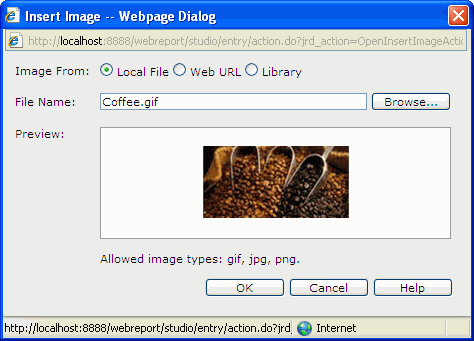
To insert an image into a web report:
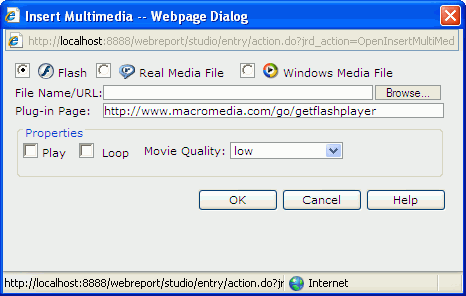
See also Insert Multimedia dialog for additional information about options in the dialog.
You can insert the following web controls into a web report: parameter control, parameter form control, filter control, and navigation control. For details, see Using web controls.
To insert a special field into a web report, do either of the following: